Configuration
After returning to the admin interface, you need to configure the FACT-Finder extension for service by switching to the Magento configuration interface, which may be found in the menu under System -> Configuration *1.
A new item has been added within the configuration area to the catalogue section in the menu on the left side of the window. After choosing the FACT-Finder tab in the catalogue section, the following window will be displayed *2.
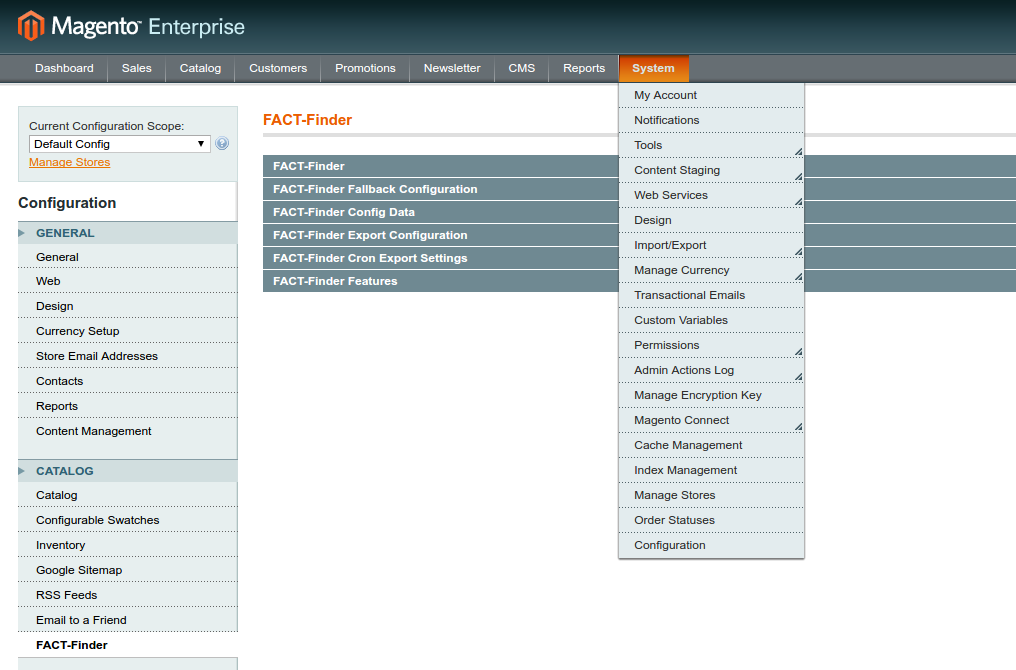
Each of the options shown will be treated separately in the following section. After all options have been properly set, save the configuration by clicking on “Save Config” in the upper right corner of the form.
*1: During installation, the extension adds new access rights to the system. If the configuration utility or the FACT-Finder area within the utility is not displayed, you may need to log out and log back into the admin interface, because the system reloads the configuration data during the login process.
*2: Depending on the settings, the option group “General Settings” may be closed. Open the option group by clicking on the green bar.
At this point, the installation has already been completed; you may now take advantage of FACT-Finder’s new capabilities. In the following, each of the configuration options will be described briefly below.
There are the following configuration sections available:
- FACT-Finder Access Data
- Fallback Configuration
- Data Configuration
- Export Configuration
- Cron Export Settings
- Features Configuration
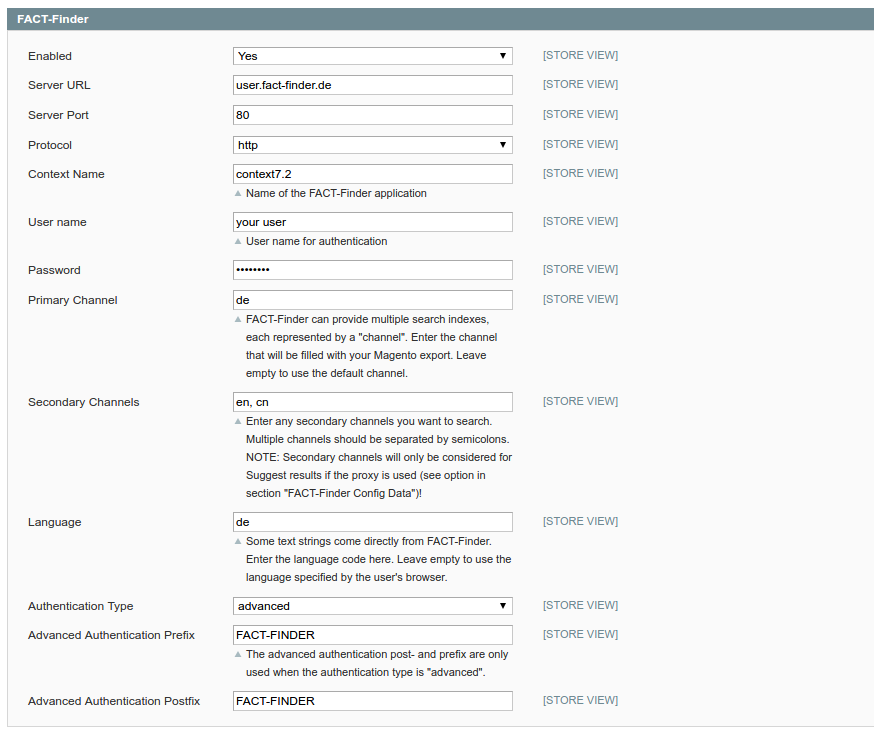
Defines whether the FACT-Finder extension is currently active or not. With multi-store systems, it may be activated for certain areas and deactivated in others. When enabling the extension, a basic test will be performed, such as checks regarding incompatibilities with other extensions.
Attention: Problems with enabling the extensions may arise not only because of a false configuration but also if the configured FACT-Finder was not properly set up . Please get in touch with your technical contact at Omikron to let them check the settings. The most common problem is a missing data feed at FACT-Finder, however it is possible to do an export with the extension even if that "Enabled" flag is not activated.
URL of the FACT-Finder server, for example "myshopname.fact-finder.com".
Server port of the FACT-Finder server, such as "80" (which is the default for the most FACT-Finder instances)
Protocol of the Tomcat server (http is the default for the most Tomcat instances)
Context name of the FACT-Finder application on the server, for example "MyShopName".
User name for communicating with the FACT-Finder server. Please note, that for the configurable import trigger feature, the configured user account needs the following roles besides the obligatory role SearchInterfaceUser:
- ImportManager
- RecommendationEngineManager (If Recommendation-Engine import trigger is enabled)
Password for communicating with the FACT-Finder server. It can be changed at the FACT-Finder Management interface.
Multiple search indexes may be stored within one FACT-Finder server. Each channel offers access to one of those indexes. Each store view normally has its own search channel.
It is possible to search in several channels at once (more information about that at Secondary Search). To add more than one channel here, you can just separate them by semicolon. Please consider, that using secondary channels in suggest needs the suggest-proxy to be activated (see below).
Besides delivering of search results, the FACT-Finder system may also transfer text information. The Language input box allows selecting the language for this text. If no language is selected, FACT-Finder will automatically provide the language which is preferred by the browser.
The Authentication Type defines the security level during transmission of FACT-Finder information between the shop server and the FACT-Finder server. It is recommended to select the level “advanced”. The level must correspond to the configuration in FACT-Finder.
Security key for transmissions between the web server and the FACT-Finder server. Only applies for authentication type "advanced", and must correspond to the setting on FACT-Finder pages.
Second security key for transmissions similar to the prefix.
*3: If you get only a URL as access data, the most data can be extracted from there. For example you get http://myshopname.fact-finder.com:8080/MyShopName-UI then the Server-URL is "myshopname.fact-finder.com", Server-Port is "8080" (if none is specified it's "80") and the Context name is "MyShopName"

If this option is activated, the Magento built-in search will be used as soon as FACT-Finder is not reachable. It is request based which means that on every search request magento checks the connectivity to FACT-Finder and if it is not reachable it shows magento's built-in search. There's no time limit like in previous versions of this module.
This option should only be activated if the built-in search works.

Determines whether images should be included to the export and whether they should be transferred to FACT-Finder. This allows to show thumbnails on suggest results. However, it may lead to a higher server load during the export (time or/and memory usage). Exporting images of child products is not needed if they are the same as the imagas of the parent.
The desired dimensions of the Suggest images in pixels. If you do not want them to be resized enter "0". Different width and length may be specified in the following format 40x50.
There are several types of images inside Magento that can be defined differently for each product. With this option it's possible to specify which type should be used for Suggest.
With this option you can strip html tags from attribute labels and values.
Determines whether products without category assignments should be exported.
Determines whether products that are out of stock should be exported.
It is possible to add certain attributes to the export. This can be used to export attributes that are not configured for search, filter or sorting. It is also possible to explicitly specify attribute type and unit. These will be only considered if the setting Use explicit attribute types was set to "Yes". Otherwise the specified attributes will be simply exported in separate fields.
Be careful with removing the attributes as the FACT-Finder might not work anymore until the fields get reconfigured through FACT-Finder installer (in the FACT-Finder backend). 128 fields are the limit on FACT-Finder side.
Defines whether data import should be started on FACT-Finder side after each successful export
Defines whether suggest import should be started on FACT-Finder side after each successful export
Defines whether recommendation import should be started on FACT-Finder side after each successful export
Defines if each from the above triggers should be executed at the same time or with a delay. It is recommended for FACT-Finder 7.1+ to have this enabled.
Allows you to upload export files in a ZIP file to the specified FTP host. If set to "Yes", FTP configuration fields will appear. Available settings:
- Upload files to FTP host - enable the feature and open the rest of settings
- FTP Host - host where the remote directory is located
- FTP Port - leave empty for default (21)
- FTP User - username to log in on the FTP server, use
anonymousfor anonymous uploads - FTP Password - password used for authentication
- FTP Path - path on FTP server where the file should be uploaded to
- Use SSL - defines, which protocol should be used for FTP connection: FTPS or FTP
If enabled click tracking is done on the search result pages.
If enabled product click tracking is done after navigating through category trees also.
Determines whether information should be collected and transferred to FACT-Finder telling which products the users put into the shopping basket. This can be used to improve the search results and can also be used to generate the up-selling and cross-selling data.
Similar to the "cart" events this option determines whether the sold products information are collected and sent to FACT-Finder. WARNING: For the transmission of products sold to FACT-Finder, the Magento-CronJob mechanism must be working.
Since the version 4.1.10 there's a simple validation mechanism for checking if the export feeds are not empty, contain the correct number of columns/rows etc. This feature may theoretically fail also some correct files. So in case you're sure, that your export feeds are correct but you still get error messages, set this to "Yes". Also it's recommended to report the issue to the module support.
With version 4.2 support for exporting cms pages has been added
For exporting cms pages a secondary channel is needed. Please refer the exporting cms page section of this documentation
- Trigger Realtime Export
- Download Last Pre-Generated Export
- Export Link for FACT-Finder Wizard
Clicking it will cause the browser to display the export inside the browser tab which is not wished normally. Also the export is generated in real-time which can take a long time depending on the amount of products.
To get the URL please right-click the link and copy the URL.
A click on that link will offer you a download of the last export for the selected store. This link is only visible if there was already an export of the current selected store.
This is the link which should be configured in FACT-Finder as import URL. To get the URL please right-click the link and copy the URL. This link is only visible if there was already an export of the current selected store.
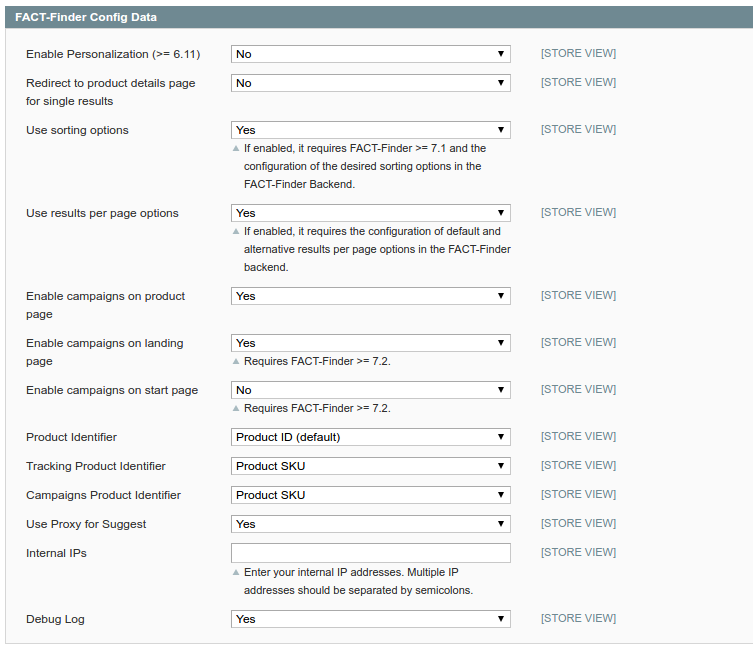
Since FACT-Finder 6.11 it is possible to get personalized search results. To get those, you have to set this flag to "yes". It will send session based data to FACT-Finder on customer login and every search request. All data is hashed and not sent as a clear text. It is necessary to have the Tracking functionality enabled.
If enabled there won't be a search result with one product any more. Instead the extension will redirect to the details page. This only works if the ArticleNumberSearch based on regular expression is enabled in FACT-Finder.
If enabled, it requires FACT-Finder >= 7.1 and the configuration of the desired sorting options in the FACT-Finder Backend. Differing sorting options for search result and category pages will not be available anymore when using this option.
If enabled, it requires the configuration of the default and alternative results per page options in the FACT-Finder Backend. The option "All" will not be available anymore when using this option.
With that flag you can decide whether campaigns should be shown on product detail page or not.
With that flag you can decide whether product campaigns should be shown on category pages which don't display only products. The product campaign you configure in FACT-Finder >= 7.2, will have to use the category id as a page id condition.
With that flag you can decide whether product campaigns should be shown on the start page of the shop. The product campaign you configure in FACT-Finder >= 7.2, will have to use start as the page id condition.
Determines whether the entity id or the SKU is used to load the products from the database. Using the entity id is recommended, but not if they change a lot for example because of frequent automated product imports. In such cases prefer the SKU which should be more static. Please ensure that you have configured the identifier which has the field role "Data record ID" on FACT-Finder side.
Since FACT-Finder 6.11 it is possible to set different identifiers for product related campaigns. Please ensure that you have configured the identifier which has the field role "Product number for display" on FACT-Finder side.
Since FACT-Finder 6.11 it is possible to set different identifiers for tracking. Please ensure that you have configured the identifier which has the field role "Product number for tracking" on FACT-Finder side.
By default (if this option is not enabled) the browser of the user will connect directly to the FACT-Finder service to fetch the suggest results. However if this makes problems (e.g. the FACT-Finder service is only reachable from the shop-server) the proxy can be enabled. In this case the Suggest requests will be sent to the shop server which redirects them to FACT-Finder. This option must also be enabled if secondary channels need to be considered for Suggest results, as the proxy merges the two suggest results.
It's possible to define internal IP addresses. Search requests from these IPs will be logged as "internal" requests, which causes the optimization to ignore such requests and the logfile analysis can also differ between these types.
If enabled the logfile var/log/factfinder.log will be written from the extension.
At this section it's possible to activate and deactivate the single modules of FACT-Finder respectively use FACT-Finder to replace certain functionalities in the shop. Only the licensed modules should be activated - the others should not work anyway. Enabling unlicensed options that might work anyway may cause additional costs.
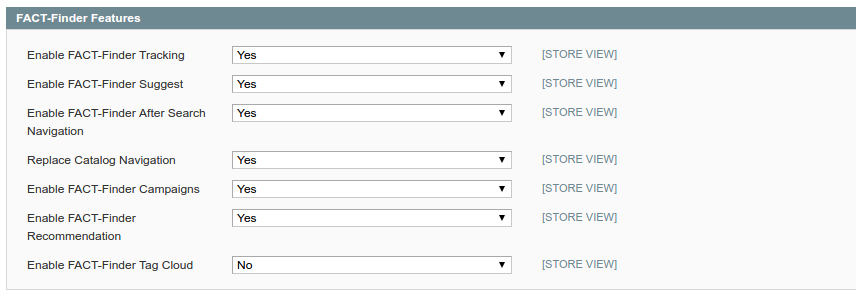
Enables the FACT-Finder tracking in order to generate better search results. It is the foundation for the recommendations and the personalized results.
Specifies whether AJAX requests should be sent to FACT-Finder directly, or via the web server, to get keyword suggestions.
Enables the ASN / facet functionality in the search.
If enabled FACT-Finder will be used for the catalog listing. It is necessary to have the ASN functionality enabled, otherwise there won't be any facets on the category pages.
Enables campaigns for result listing, product detail, shopping cart, category start and the shop start pages.
Uses the FACT-Finder recommendation engine to replace the upselling and cross-selling feature of Magento on product detail and shopping cart pages.
Replaces the generated "search-terms" of Magento with the data from the FACT-Finder tagcloud.