


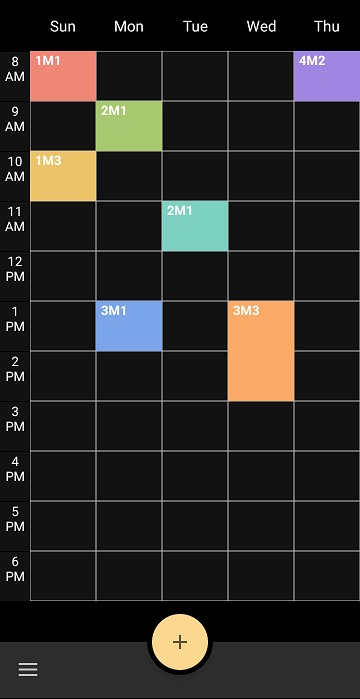
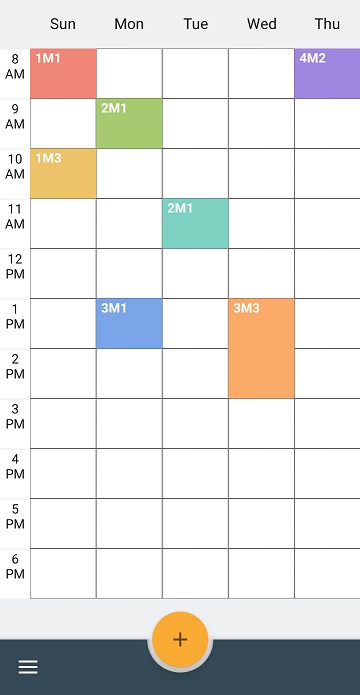
Android Library that creates simple time table.
Add it in your root build.gradle
allprojects {
	repositories {
		...
		maven { url 'https://jitpack.io' }
	}
}
Add the dependency
dependencies {
	implementation 'omarb1989:TimetableView:1.0.4-fx5'
}Add following XML namespace inside your XML layout file.
xmlns:app="http://schemas.android.com/apk/res-auto"<omarb1989.timetableview.TimetableView
android:id="@+id/timetable"
android:layout_width="match_parent"
android:layout_height="wrap_content"
app:column_count="6"
app:row_count="12" />app:row_count="12" // sets number of table rows (default:12)
app:column_count="6" // sets number of table column (default:6)
app:cell_height="50dp" // sets table cell height (default:50dp)
app:side_cell_width="30dp" // sets left side cell width (default:30dp)
app:header_title="@array/my_header_title" // sets header title (default:eng)
app:sticker_colors="@array/my_sticker_color" // sets schedule sticker colors
app:start_time="9" // sets start time (range : 0 ~ 24)
app:header_highlight_color="@color/highlight" // sets header highlight color (default : #74a4f3)
app:header_highlight_image="@drawable/ic_kitty" // set header highlight image src
app:header_highlight_image_size="36dp" // set header highlight image width,height(square)
app:header_highlight_type="image" // set header highlight type - color/image (default : color)
app:color_surface="#ffffff" // set default color of table boxes
app:color_borders="#F3F3F3" // set color for the table borders
app:side_color_text="#000000" //set color text of the first column of hours
app:color_side="#F48FB1" // set color of the first column of hours
app:color_side_header_text="#FFE082" // set color text of the header and the first column of hours
app:border_width="light" // set table border width: noWidth, light, normal, thick, extra thickFirst, write a string-array as below on values/strings.xml.
<string-array name="my_header_title">
    <item></item>
    <item>Mon</item>
    <item>Tue</item>
    <item>Wed</item>
    <item>Thu</item>
    <item>Fri</item>
</string-array>
Then, apply that to timetable attribute.
<omarb1989.timetableview.TimetableView
    android:id="@+id/timetable"
    android:layout_width="match_parent"
    android:layout_height="0dp"
    android:layout_weight="1"
    app:header_title="@array/my_header_title" />
OnStickerSelectedListener is invoked when clicked by user.
idx is used to edit or delete.
timetable.setOnStickerSelectEventListener(new TimetableView.OnStickerSelectedListener() {
    @Override
    public void OnStickerSelected(int idx, ArrayList<Schedule> schedules) {
        // ...
    }
});
OnStickerSelectedLongClickListener is invoked when Long clicked by user.
idx is used to edit or delete.
timetable.setOnStickerSelectEventListener(new TimetableView.OnStickerSelectedLongClickListener() {
            @Override
            public void OnStickerSelectedLongClick(int idx, ArrayList<Schedule> schedules) {

            }
});ArrayList<Schedule> schedules = new ArrayList<Schedule>();
Schedule schedule = new Schedule();
schedule.setClassTitle("Data Structure"); // sets subject
schedule.setClassPlace("IT-601"); // sets place
schedule.setProfessorName("Won Kim"); // sets professor
schedule.setStartTime(new Time(10,0)); // sets the beginning of class time (hour,minute)
schedule.setEndTime(new Time(13,30)); // sets the end of class time (hour,minute)
int uniqueId = schedule.get_id();// you can use it later on wherever you get schedule object to identify it
schedules.add(schedule);
//.. add one or more schedules
timetable.add(schedules);Before you edit,you need to get a sticker idx by using OnStickerSelectedListener.
timetable.edit(idx,schedules);timetable.remove(idx);
timetable.removeAll(); // remove all items1.Color type(Default)
<omarb1989.timetableview.TimetableView
    android:id="@+id/timetable"
    android:layout_width="match_parent"
    android:layout_height="0dp"
    android:layout_weight="1"
    app:header_highlight_type="color" />
2.Image type
<omarb1989.timetableview.TimetableView
    android:id="@+id/timetable"
    android:layout_width="match_parent"
    android:layout_height="0dp"
    android:layout_weight="1"
    app:header_highlight_image="@drawable/ic_kitty"
    app:header_highlight_image_size="36dp"
    app:header_highlight_type="image" />
Then,
timetable.setHeaderHighlight(idx);Using SaveManager, you can save all timetable schdule datas in json format.
String json = timetable.createSaveData(); // save
timetable.load(json); // restoreCopyright 2019 tlaabs, forked and updated by omarb1989
Licensed under the Apache License, Version 2.0 (the "License");
you may not use this file except in compliance with the License.
You may obtain a copy of the License at
http://www.apache.org/licenses/LICENSE-2.0
Unless required by applicable law or agreed to in writing, software
distributed under the License is distributed on an "AS IS" BASIS,
WITHOUT WARRANTIES OR CONDITIONS OF ANY KIND, either express or implied.
See the License for the specific language governing permissions and
limitations under the License.